Short Answer: The Dell 32" 4K 120Hz ($449) is the best overall home office monitor for 2026. For budget shoppers, the Amazon Basics 23.8" 1080p ($85) delivers IPS quality and 120Hz at an unbeatable price. Use the Monitor Finder Tool to filter by your exact needs.
Your monitor is the most underrated part of your home office setup. Most people spend $1,200 on a laptop then plug it into a $99 monitor — and wonder why their eyes hurt by noon. In 2026, with AI tools like Claude and Cursor open all day alongside a browser full of tabs, you need a screen that can handle it.
The good news: you don't need to spend $600 to get a great monitor. The monitors in this list range from $85 to $449 and cover every use case — pure productivity, creative work, dual-purpose gaming and work, and ultrawide multitasking.
Quick Picks — Best Monitors at a Glance
| Pick | Monitor | Size / Res | Price | Buy |
|---|---|---|---|---|
| Best Overall | Dell 32" 4K 120Hz | 32" / 4K VA | $449 | Amazon → |
| Best Budget | Amazon Basics 23.8" 120Hz | 24" / 1080p IPS | $85 | Amazon → |
| Best Under $100 | Philips 24" Frameless 100Hz | 24" / 1080p VA | $89 | Amazon → |
| Best 1440p | ASUS TUF VG27AQL5A | 27" / 1440p IPS | $329 | Amazon → |
| Best Ultrawide | Sceptre 30" Curved 200Hz | 30" / UW-FHD VA | $199 | Amazon → |
| Best Curved | Samsung Odyssey G55C 32" | 32" / 1440p VA | $279 | Amazon → |
1. Dell 32" 4K Monitor 120Hz — Best Overall
The best all-round home office monitor at this price point

- 4K sharpness for text-heavy work
- 120Hz feels smooth for scrolling
- HDR + FreeSync versatility
- Pivot for portrait mode coding
- No USB-C / Thunderbolt
- VA panel has slower response than IPS
- Priciest pick in this list
If you're building a serious home office setup in 2026 and can spend under $500, this Dell 32" 4K is the one to get. The 4K resolution on a 32" panel hits a sweet spot — text is razor sharp, you can comfortably have two full documents side by side, and UI elements at 150% scaling look beautiful.
The 120Hz refresh makes a noticeable difference for daily work — scrolling long code files or docs feels smooth rather than choppy. Throw in HDR and FreeSync and this doubles as a capable gaming display after hours. The pivot stand is a hidden gem: flip it portrait for reading long articles or reviewing PRs, something developers especially appreciate.
2. Amazon Basics 23.8" 1080p 120Hz — Best Budget Pick
The no-nonsense $85 monitor that just works

- IPS panel for accurate colors
- 120Hz for the price is exceptional
- Amazon reliability + easy returns
- Compact fit for small desks
- 1080p feels soft on 24"+ screens
- Basic stand, no height adjust
- No HDR or USB-C
At $85, this is the monitor you recommend to someone setting up their first home office or adding a second screen to their setup. The IPS panel means colors are honest and viewing angles are wide — important when you're sharing your screen on Zoom calls. 120Hz at this price is genuinely rare and makes the daily scrolling experience noticeably better than 60Hz budget alternatives.
If you're a student, a freelancer on a tight budget, or just need an extra screen for a secondary task, this is a buy-without-thinking choice. Don't overthink it at $85.
3. Philips 24" Frameless 100Hz — Best for Eye Care
The WFH monitor that takes care of your eyes during 8-hour sessions

- Philips LowBlue eye care mode
- 4-year replacement warranty
- Frameless — great for dual setups
- Built-in speakers included
- VA contrast slightly muted vs IPS
- No height adjustment on stand
The two things that set this $89 Philips apart from the Amazon Basics above: a 4-year replacement warranty (almost unheard of at this price) and genuine eye care technology that reduces blue light strain. If you're staring at a screen for 8+ hours doing remote work or AI-assisted writing, that matters more than people realize.
The frameless design also makes it ideal as a second monitor — placed next to your main display, the thin bezel minimizes the visual gap. Built-in speakers mean one less cable on your desk too.
4. ASUS TUF VG27AQL5A 27" 1440p — Best Step-Up Pick
The monitor where 1080p users never go back after upgrading

- 1440p IPS — text clarity is excellent
- 210Hz makes everything fluid
- Pivot stand — portrait for coding
- Works great for both work and gaming
- No USB-C — not ideal for MacBook users
- Gaming branding looks out of place in a clean office
1440p on a 27" IPS panel is widely considered the sweet spot for home office and coding work — sharper than 1080p without requiring the GPU horsepower of 4K. On this ASUS, the Fast IPS panel is noticeably crisp: reading long documentation, reviewing code diffs, or running multiple Claude/ChatGPT tabs side by side feels genuinely comfortable.
The 210Hz might seem overkill for work, but it means buttery-smooth scrolling that reduces eye fatigue over long sessions. The pivot capability — flip it portrait — is especially valuable for developers who work with long files. This is also a strong choice if you use your home office machine for gaming after hours.
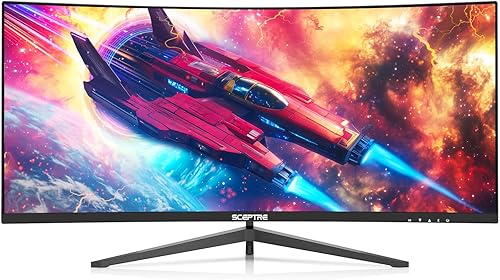
5. Sceptre 30" Curved Ultrawide 200Hz — Best Multitasking Screen
Replace two monitors with one wide screen for $199
- Ultrawide for native split-screen
- 200Hz at this price is exceptional
- Replaces a dual-monitor setup
- Immersive 1500R curve
- 1080p height feels short on 30"
- Some apps don't support ultrawide natively
- Sceptre brand has minimal warranty support
If you work with multiple apps open simultaneously — Claude on one side, your code editor or document on the other — an ultrawide changes your workflow more than any other upgrade. This Sceptre 30" delivers that experience for just $199, which is cheaper than most 27" 1440p monitors.
The trade-off: ultrawide resolution (2560×1080) means the vertical pixel count is the same as a 1080p monitor. You get more horizontal space, not more vertical. For productivity that's mostly fine — the 200Hz keeps everything snappy, and the 1500R curve keeps the edges of the screen within comfortable viewing distance. A genuinely impressive value buy.
6. Samsung Odyssey G55C 32" Curved — Best Home Office + Gaming Hybrid
1440p + 165Hz in a stunning curved form factor

- 1440p at 32" is immersive and sharp
- 1000R curve wraps your field of view
- 165Hz + 1ms for gaming after work
- Samsung build quality and support
- VA panel: slower pixel response vs IPS
- Aggressive 1000R curve splits opinion
- No USB-C hub functionality
The Samsung Odyssey G55C is the pick for anyone who wants their home office setup to look as good as it performs. The 1000R curve on a 32" screen wraps naturally around your field of view — after a day of work it becomes one of those things you can't go back from. At 1440p the text quality is excellent, and 165Hz means the display keeps up whether you're scrolling through a 2,000-line codebase or playing a game after hours.
For $279 this is exceptional value — you'd pay the same for a flat 27" 1440p from a lesser brand. Samsung's build quality and warranty support also make this a safer long-term purchase than budget curved options.
How to Choose a Home Office Monitor in 2026
You don't need to know everything about panel technology to make a good choice. Here's what actually matters for home office and AI work:
📐 Size
24" is fine for a single monitor. 27" is the sweet spot for most home offices. 32" is great if you sit further back or want an immersive feel. Go ultrawide (29–34") if you're a chronic tab-switcher.
🖼️ Resolution
1080p is acceptable on 24". At 27" or larger, 1440p is strongly recommended — 1080p looks noticeably soft. 4K is great for creative work and future-proofing, but your GPU needs to handle it.
🔲 Panel Type
IPS = best colors and viewing angles. VA = deeper blacks, better contrast but slower. TN = fastest but worst colors. For office work, IPS is almost always the right choice. VA works well too.
⚡ Refresh Rate
60Hz is fine but 2026 monitors at 100–120Hz are so cheap that there's no reason to settle. Higher Hz = smoother scrolling and less eye fatigue over long days. 144Hz+ is mainly for gaming.
🔌 Connectivity
MacBook users should prioritize USB-C monitors — they charge the laptop and carry video over one cable. Windows/desktop users are fine with HDMI + DisplayPort. Check your laptop's ports first.
🏋️ Ergonomics
Height-adjustable stands matter more than people realize. If the monitor can't rise to eye level, you end up hunching. Pivot (portrait mode) is a bonus for coders and readers.
Final Verdict
school My Top Picks, Summarized
Best money you can spend: Dell 32" 4K 120Hz ($449) — sharp, versatile, and built to last.
Best if budget is tight: Amazon Basics 23.8" ($85) — IPS + 120Hz at $85 is a steal.
Best for long work days: Philips 24" Frameless ($89) — eye care + 4-year warranty, can't go wrong.
Best upgrade from 1080p: ASUS TUF 27" 1440p ($329) — the resolution jump you'll immediately notice.
Best for multitasking: Sceptre 30" Ultrawide ($199) — replace two monitors, one cable.
Best looking setup: Samsung Odyssey G55C 32" ($279) — 1440p curved, works and games beautifully.
Still not sure which monitor to pick? The Monitor Finder Tool lets you filter by budget, use case, screen size, resolution, and panel type to narrow it down to exactly what you need.