Best PC Builds for Running AI Locally & AI Development 2026—
3 Builds for Every Budget
Related Picks — Live Amazon Prices
Verified specs & live Amazon prices • Click any pick to view deals
Find your match in 1 tap:
Author
Himansh
Published
April 6, 2026
5 min read
Best For
DIY Builders Maximizing Price-to-VRAM for Local LLMs
Stop fighting with cloud API costs. Build your own local AI machine for Llama 3, Mistral, Qwen, and DeepSeek. VRAM is everything — here's how to maximise it at $1,100, $1,800, and $3,500.
bolt TL;DR: Quick AI PC Build Recommendations
- For Students & Beginners (Budget): RTX 5060 Ti 16GB Build (~$1,100). Best for running 8B–14B models (Llama 3 8B, Qwen2.5 7B) locally.
- For Developers (Mid-Range Sweet Spot): RTX 4070 Ti Super 16GB Build (~$1,800). Handles 90% of local LLM needs, smooth 34B model performance.
- For AI Researchers (Pro): RTX 4090 24GB Build (~$3,500). Max consumer VRAM for 70B models and fine-tuning.
- Golden Rule: Always prioritize VRAM over raw GPU speed. 16GB of slower VRAM beats 8GB of faster VRAM for AI.
- System RAM: Buy 2 sticks (e.g., 2x32GB), avoid 4 sticks to prevent DDR5 speed drops during offloading.
VRAM Calculator — What model fits your GPU?
* Estimates based on Q4_K_M quantization + 8k context. Higher context = +1–3GB.
VRAM is your kitchen counter
The bigger the counter, the larger the model you can cook. 8GB = tiny apartment kitchen (one 7B model). 16GB = professional prep table (13B–22B models). 24GB = restaurant kitchen (70B models at Q4). Prioritise VRAM over raw GPU speed. 16GB of slower VRAM beats 8GB of faster VRAM for local LLMs every single time.
Prices subject to change · Check Amazon for current pricing
Some links are Amazon affiliate links — they help keep this guide free at no extra cost to you.
Best Budget PC Build for Local AI 2026 (Under $1,200)
Looking for affordable AI PC options in 2026? This RTX 5060 Ti 16GB setup runs 13B–22B models smoothly. Perfect for Ollama, LM Studio, and learning the local AI workflow.

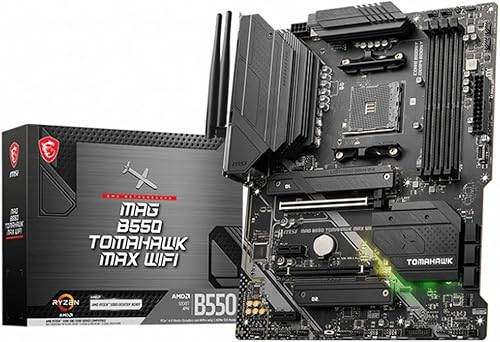


Full build total: ~$1,100–1,350 (8 components)
Runs: Llama 3 8B, Qwen2.5-Coder 7B, Mistral 7B, Codestral 22B (IQ4) — ~40–60 tok/s (7B Q4), ~20 tok/s (22B)
Best PC Build for AI Development 2026 (The 16GB Sweet Spot)
Handles 90% of practical local LLM use cases. 13B–34B models at Q4, fast enough for real AI development and agentic coding workflows.


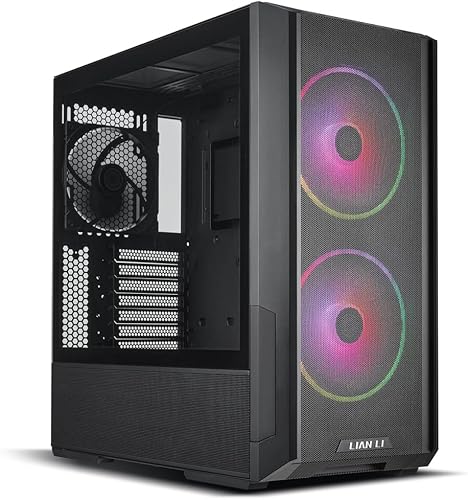
Full build total: ~$1,800–2,300 (8 components)
Runs: Llama 3.1 13B, DeepSeek-Coder-V2 16B, Qwen2.5-Coder 32B (Q4) — 30–45 tok/s
RTX 4090 24GB — Run 70B Models Locally
24GB VRAM runs 70B models at 4-bit, fine-tunes 7B–13B models, handles 34B at full 8-bit quality.


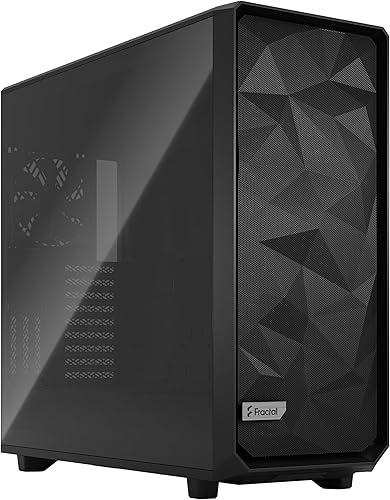
Full build total: ~$3,500–4,200 (8 components)
Runs: Llama 3.3 70B (Q4), Qwen2.5-72B (Q4), fine-tunes 7B–13B models — 15–20 tok/s on 70B
What Models Can I Run? (By Build)
| Build | VRAM | 7B–13B Models | 16B–34B Models | 70B+ Models | Fine-tuning |
|---|---|---|---|---|---|
| Budget RTX 5060 Ti |
16 GB | 40–60 tok/s | 22B (IQ4) ~20 tok/s | No | No |
| Mid-Range RTX 4070 Ti Super |
16 GB | 50–70 tok/s | 34B (Q4) 25–35 tok/s | No | 7B only (small batch) |
| Pro RTX 4090 |
24 GB | 70+ tok/s | 34B full 8-bit quality | 70B (Q4) ~15–20 tok/s | 7B–13B models |
* All speeds measured with Q4_K_M quantization, 8k context window. Actual performance varies by CPU, RAM speed, and cooling.
Software Setup in 10 Minutes
# 1. Install Ollama (one line — works on Windows, Mac, Linux)
curl -fsSL https://ollama.com/install.sh | sh
# 2. Pull and run your first model
ollama run qwen2.5-coder:7b
# 3. Or use LM Studio for a GUI instead
Download from lmstudio.ai — drag, drop, chat
That's it. No cloud accounts, no API keys, no subscription fees. Your first local AI is running in under 10 minutes.
Decision Tree: Which PC Should You Build?
Scenario A: "I just want to learn local AI and run basic coding assistants."
👉 Get the 16GB Budget Build ($1,100). The RTX 5060 Ti 16GB is the absolute best value. You'll run Qwen2.5-Coder 7B and Llama 3 8B flawlessly.
Scenario B: "I am a developer building apps around local models (30B+)."
👉 Get the Mid-Range Build ($1,800). The RTX 4070 Ti Super's 16GB GDDR6X VRAM offers the memory bandwidth needed for fast prompt processing on 30B+ models without breaking the bank.
Scenario C: "I need to fine-tune models or run Llama 3 70B locally."
👉 Get the Pro Build ($3,500). You absolutely need the 24GB VRAM of the RTX 4090. Anything less will result in severe system RAM offloading and unusable speeds.
Troubleshooting: 5 Common Local AI Hardware Errors
- "CUDA Out of Memory" Error: You are trying to load a model that exceeds your GPU VRAM + System RAM combined, or your context window is set too high. Fix: Lower context size (e.g., from 8192 to 4096) or use a smaller quantization (e.g., Q4_K_M instead of Q8).
- DDR5 RAM Speed Drops (4 Sticks): High-speed DDR5 memory controllers struggle to manage 4 DIMM slots. If you want 64GB, buy a 2-stick kit (2x32GB). Using 4 sticks forces your motherboard to drop speeds, bottlenecking system offload.
- Sudden System Crashes During Inference: High-end AI GPUs draw 300W+ sustained. Fix: Stop daisy-chaining PCIe power cables. Run separate, individual cables from your PSU to the GPU.
- Extremely Slow Prompt Processing (Tokens/sec): Your model is likely spilling over into System RAM. Check your Task Manager / System Monitor. Fix: Switch to a smaller model that fits entirely within your dedicated VRAM.
- Second GPU Not Detected / Slow: If you add a second GPU, ensure your motherboard supports x8/x8 PCIe lane splitting. Some cheaper boards will disable the second slot or run it at x4 speeds, causing severe bottlenecks.
Frequently Asked Questions
Last updated: April 6, 2026 · Prices subject to change · Check Amazon for current pricing
* Some links are Amazon affiliate links — they help keep this guide free at no extra cost to you.